 Folio
FolioExtract text (OCR)
Extract text from scans on your phone
Tap Extract text and Folio reads the words on your scan. Copy them, share them as text, search inside your documents or build a searchable PDF.

- Works offline
- No account
- Documents never uploaded
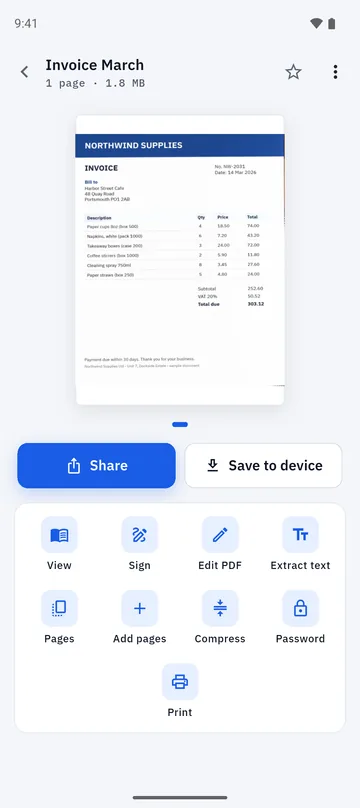
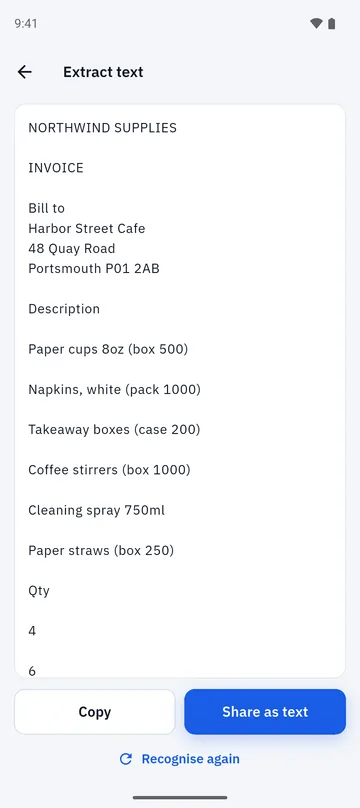
How to extract text from a scan
- 1
Open a document
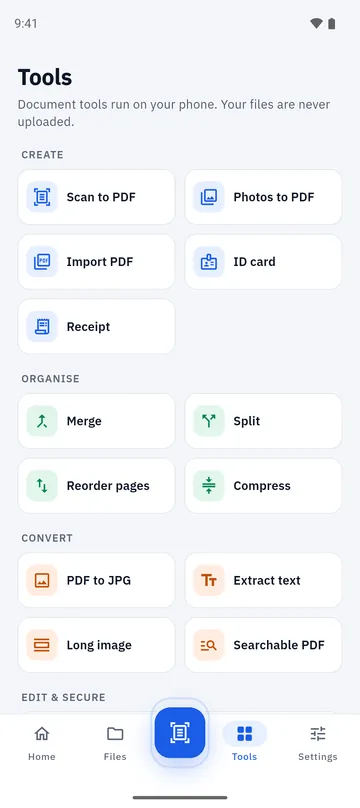
Open a scan or PDF in Folio and tap Extract text, or choose it from the Tools tab.
- 2
Let it read the page
The first time, Google Play services may download a small recognition model. Only the model is downloaded, never your document.
- 3
Copy or share
The recognised text appears on screen. Copy it, or share it as text.
- 4
Search later
Documents you have read with Extract text can be searched by their words, and can be exported as a searchable PDF.
Recognition that stays on your device
Text recognition runs on your phone. Your scan and the text found in it are not sent to Folio or to an advertiser. The one thing that may be downloaded is the recognition model itself, and Folio asks before it continues.
- Reads Latin-script languages, such as English, French, Spanish and German.
- Works best on clear, well-lit, printed text; accuracy varies with the scan.
- You can re-run recognition if you rescan a page.
From a picture of text to text you can use
Use the result wherever you need the words.
- Copy a block into an email or a form.
- Share as text, or export a plain .txt file.
- Searchable PDF: keep the scan’s look and add a hidden text layer so you can find words in it.
- Search your library by the text of documents you have read with Extract text.
Good to know
- Recognition covers Latin-script text. Other scripts are not supported yet.
- Folio only searches the text of documents you have already read with Extract text.
- Google Play services may download the recognition model the first time you use it. That needs an internet connection once.
- A short rewarded video may play before you export a searchable PDF or share a document.
Folio is free, with a few ads and a one-time Remove Ads purchase. Details are on the home page.
Questions about text extraction
Does text extraction work offline?
Yes, after the recognition model is on your phone. The first use may need a connection so Google Play services can download that small model. Your documents are never uploaded.
Which languages does it read?
Latin-script languages, which covers English and most European languages. Other scripts are not supported yet.
Is my scan sent to a server to be read?
No. Recognition runs on your device. Only the recognition model is downloaded, and it is downloaded by Google Play services, not by sending your document anywhere.
Can I make a searchable PDF?
Yes. Folio can save a PDF that looks like your scan and also carries a hidden text layer, so you can select and search the words.
How accurate is it?
It is good on clear printed pages and weaker on blur, glare, small print and handwriting. A well-lit, flat scan with a clean crop gives the best result.
Can I search my documents by their text?
Yes, for documents you have run through Extract text. Folio’s search can match a document’s title or its recognised text.
More you can do in Folio
Scan to PDF
Scan one page at a time, check the edges, clean up with filters and create a PDF.
Learn more about Scan to PDF →PDF editor
Add text, pen strokes, highlights, images and signatures to a PDF page.
Learn more about PDF editor →Sign PDF
Draw, type or photograph your signature, tap to place it, and add the date.
Learn more about Sign PDF →