 Folio
FolioDocument scanner
Scan documents to PDF on your phone
Folio is an offline document scanner for Android. Snap a page, check the edges, pick a filter and create a PDF. Your scans stay on your device.

- Works offline
- No account
- Documents never uploaded
How to scan a document to PDF
- 1
Scan a page
Point the camera at the page and tap the shutter. Or import photos from your gallery or PDFs you already have.
- 2
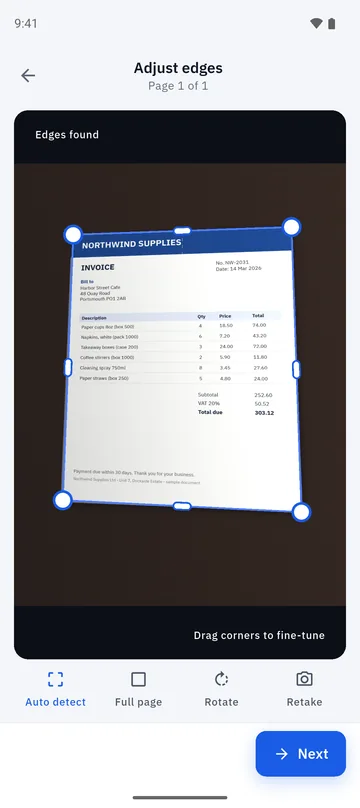
Check the edges
Folio finds the page edges for you. Drag a corner to fine-tune, rotate, use the full page, or retake.
- 3
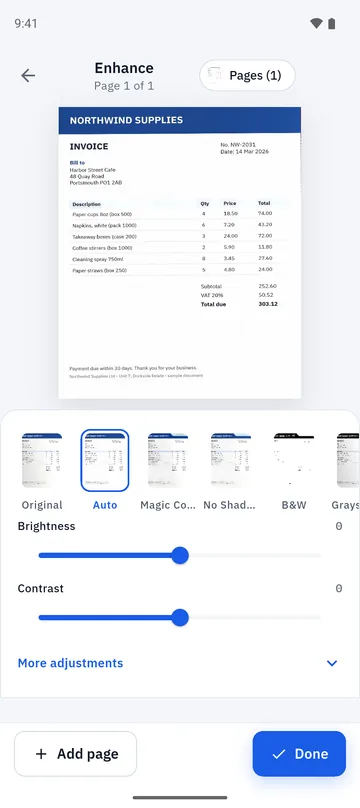
Clean it up
Pick Auto, Magic Color, No Shadow, Black & White or Grayscale, then adjust brightness and contrast.
- 4
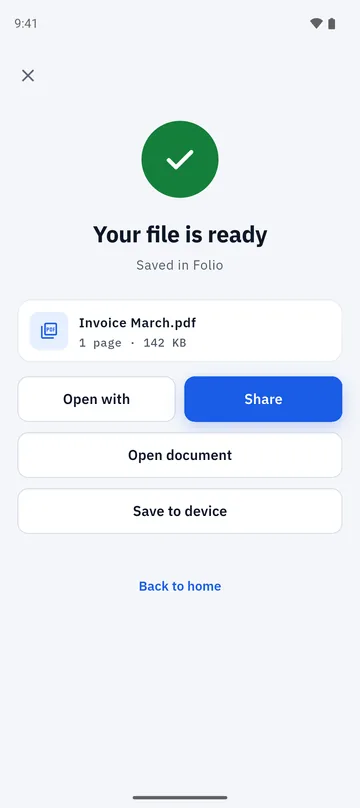
Create the PDF
Add more pages if you need them, name the file and tap Create PDF. Then share it or save it to your device.
One page at a time, with a crop check on every page
Folio is built for pages you want to get right. You tap the shutter yourself, and every page goes through a crop screen before it is added. There is no automatic shutter and no scanning a stack in one go, so a crooked corner or a finger in the frame never ends up in your PDF unnoticed.
- Edges are detected automatically; drag the corner handles to adjust.
- Rotate, retake, or use the full page in one tap.
- Scan a page, tap Add page, and repeat for multi-page documents.
Filters that make paper look like paper
Phone photos pick up shadows, yellow light and grey paper. The enhance screen cleans each scan with one tap and lets you fine-tune it.
- Auto, Magic Color, No Shadow, Black & White and Grayscale filters.
- Brightness and contrast sliders under More adjustments.
- Your original photo is never overwritten; edits are stored as operations.
Ready to share in seconds
Name the file, tap Create PDF, and your document is saved in Folio. From there you can open it, share it, print it or save a copy to your device.
- Modes for ID cards (both sides on one page) and receipts.
- Image to PDF: turn photos from your gallery into a PDF.
- Import PDFs you already have, then sign, merge or edit them.
- No watermark on your PDFs.
Good to know
- Scanning is one page at a time, and every page goes through the crop screen.
- The camera and scan tools work without an internet connection. Ads and purchases need one.
- A short rewarded video may play before you share, print or open a document in another app.
- Your scans are processed on your phone and are not uploaded by Folio.
Folio is free, with a few ads and a one-time Remove Ads purchase. Details are on the home page.
Questions about scanning to PDF
Does Folio work offline?
Yes. Scanning, cropping, filters, PDF creation, signing, merging, splitting and editing all run on your phone without an internet connection. Only ads and purchases need one, and the optional text recognition model may need a one-time download.
Can I scan several pages into one PDF?
Yes. Scan a page, check the crop, tap Add page and repeat. Each page is scanned and checked one at a time, then all of them go into a single PDF when you tap Create PDF.
Does Folio add a watermark to my PDF?
No. The PDFs you create have no Folio watermark.
Can I scan an ID card or a receipt?
Yes. Folio has an ID card mode that places both sides of a card on one page, and a receipt mode.
Where are my scans stored?
In Folio’s private storage on your device. Folio has no account and no document server, so nothing is uploaded. If you share or save a copy elsewhere, that copy follows the destination app’s rules.
Can I turn photos from my gallery into a PDF?
Yes. Use Photos to PDF to pick images, check each one on the crop screen if you like, and create a PDF.
More you can do in Folio
Sign PDF
Draw, type or photograph your signature, tap to place it, and add the date.
Learn more about Sign PDF →Merge and split PDF
Combine PDFs, split them, extract pages, reorder, rotate and compress.
Learn more about Merge and split PDF →Extract text (OCR)
Read the text in a scan, copy or share it, and make a searchable PDF.
Learn more about Extract text (OCR) →