 Folio
FolioSign PDF
Sign a PDF on your phone, without uploading it
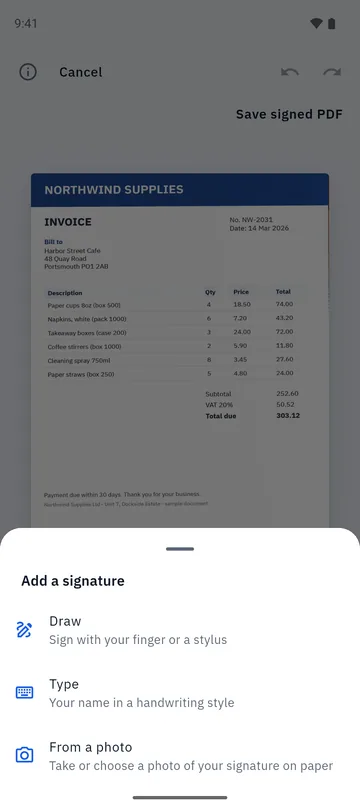
Draw your signature, type your name in a handwriting style, or photograph one on paper. Tap the page to place it, add the date and save a signed copy.

- Works offline
- No account
- Documents never uploaded
How to sign a PDF in Folio
- 1
Open your document
Pick a document you scanned in Folio, or import a PDF, then tap Sign.
- 2
Make your signature
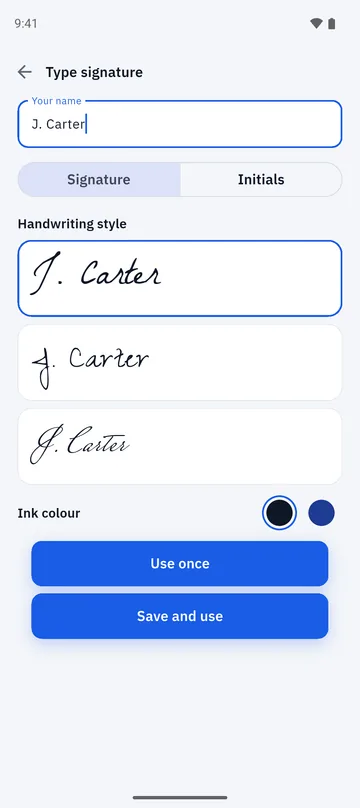
Draw it with a finger or stylus, type your name in a handwriting style, or take a photo of a signature on paper.
- 3
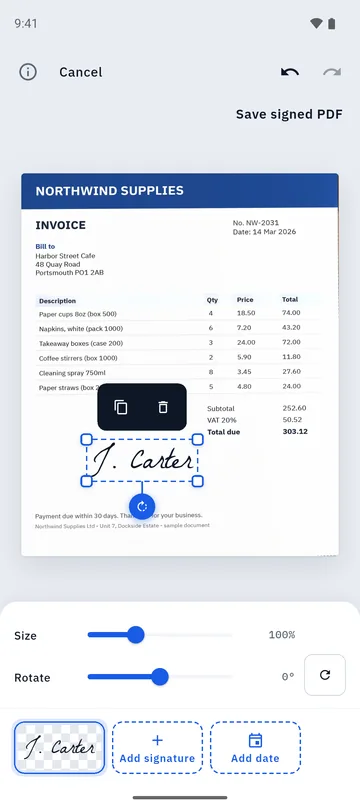
Tap to place it
Tap the page where it should go, then resize or rotate it. Add the date in one tap.
- 4
Save the signed PDF
Tap Save signed PDF. Your original stays untouched and the signed version is a new copy.
Three ways to make a signature
Use whichever suits the moment. A signature you keep can be reused on the next document.
- Draw it with a finger or stylus.
- Type your name in a handwriting style, as a signature or as initials, in your choice of ink colour.
- From a photo: photograph a signature on white paper and Folio cuts it out, so only the ink remains.
Place it exactly where it belongs
Signing is a tap, not a form. Choose a spot on the page, drag the signature into position, then use the size and rotate sliders. Tap Add date to stamp today’s date next to it.
- Works on documents you scanned in Folio and on PDFs you imported.
- Undo and redo while you place it.
- The signed copy is saved separately; your original is never modified.
Private by design
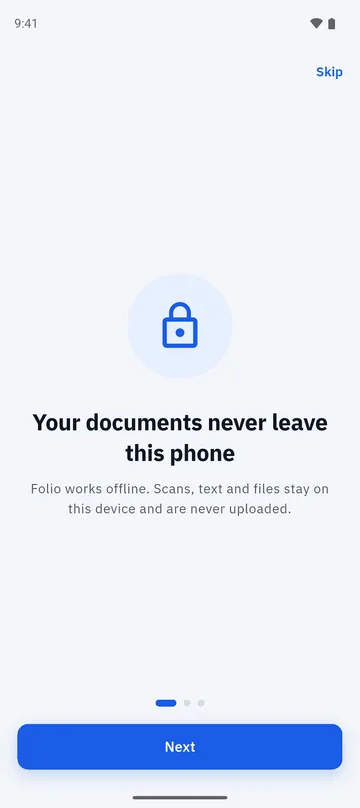
Your signature and your document never leave your phone. There is nothing to upload, no account to create and no link to send. The whole job runs on the device, even with airplane mode on.
Good to know
- Folio places a picture of your signature on the page. It is not a certified e-signature or a cryptographic digital signature.
- Whether a picture of a signature is accepted depends on who is asking and on local rules. If a contract requires a certified signature, use a certified-signature service.
- Password-protected PDFs can be opened in the viewer but cannot be signed yet.
- A short rewarded video may play before you share, print or open the signed PDF in another app.
Folio is free, with a few ads and a one-time Remove Ads purchase. Details are on the home page.
Questions about signing PDFs
Is a signature made in Folio legally valid?
Folio places an image of your signature on the page. It is not a certified e-signature and carries no cryptographic proof. Many everyday forms accept a plain signature image, but some contracts need a certified service. Check with whoever asked you to sign.
Is my signature uploaded anywhere?
No. Drawing, typing, photo cut-out and placement all happen on your device. Folio does not upload your signature or your documents.
Can I sign a PDF I received by email or chat?
Yes. Open the PDF with Folio or import it, tap Sign, make or pick a signature and place it. Folio handles PDFs from other apps through Android’s Open with and Share menus.
Can I sign with a photo of my handwritten signature?
Yes. Choose From a photo, take or pick a picture of your signature on white paper, and Folio removes the background so only the ink is left.
Does Folio add the date?
Yes. After placing your signature you can tap Add date to stamp the date on the page, then move or resize it like any other item.
Can I reuse my signature?
Yes. Choose Save and use to keep a signature in your library, or Use once if you do not want to keep it. Removing a saved signature does not remove one that is already on a signed document.
More you can do in Folio
PDF editor
Add text, pen strokes, highlights, images and signatures to a PDF page.
Learn more about PDF editor →Scan to PDF
Scan one page at a time, check the edges, clean up with filters and create a PDF.
Learn more about Scan to PDF →Merge and split PDF
Combine PDFs, split them, extract pages, reorder, rotate and compress.
Learn more about Merge and split PDF →