Folio
FolioOffline vs Cloud Document Scanners: A Privacy Guide

On this page
A document scanner app asks for something unusual: a close-up picture of your most sensitive papers. Passports, bank statements, tax forms, medical reports, rental agreements. Where that picture goes after you tap the shutter is the single biggest difference between scanner apps, and it is rarely the first thing in the app store listing. This guide explains the two models, what to ask, and how to scan sensitive paperwork with less risk.
The two models in plain language
Cloud scanners send your page, or data taken from it, to the company's servers. There, the service may straighten the image, clean it up, read the text, store the result in an account and sync it across your devices. The convenience is real: your documents follow you from phone to laptop, and heavy processing runs on powerful servers.
Offline scanners do the work on your phone. Edge detection, filters, PDF creation and text recognition all run locally, and the files stay in the app's storage on the device. You give up automatic sync and server-side extras; you gain a much simpler privacy story.
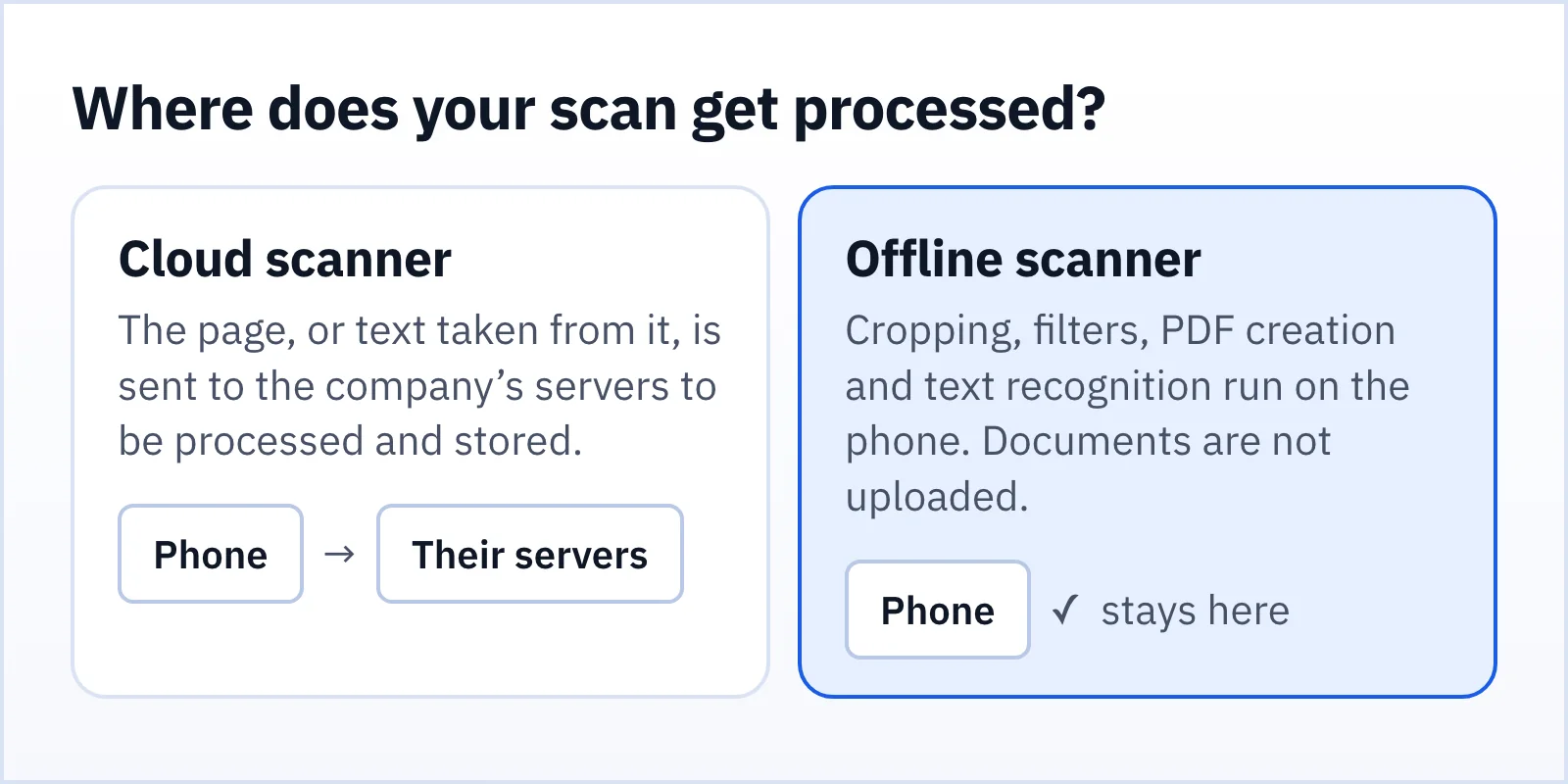
Neither model is automatically good or bad. A cloud service run by a careful company can be perfectly reasonable for a restaurant menu. The trouble starts when the document is something you would not photocopy for a stranger.
What can go wrong with documents on a server
You do not need to assume bad intent to see the risks.
- Retention. A document you "deleted" may be kept in backups or logs for a while. Retention periods are often in the small print, if they are stated at all.
- Breaches. Any server that stores personal documents is a target. If it is breached, your ID or bank statement is in someone else's hands, and you cannot take it back.
- Policy changes. A service can change its terms, its owner or its business model. Data that was collected under one promise can be used under another.
- Secondary use. Some services use uploaded content to improve their products or to generate leads. Whether they do is a policy choice, and it can change.
- Account recovery and sharing. A cloud account makes your documents accessible to anyone who gets into the account, including through a stolen password.
For a low-stakes page, those risks may be acceptable. For identity documents and financial papers, many people prefer not to take them at all.
What an offline scanner does and does not guarantee
"Offline" is a strong claim, so it is worth being precise about it. An offline scanner processes your documents on the device. That does not mean the app never touches the internet. Be wary of any app that says it never does, if it also shows ads or sells upgrades.
With Folio, for example:
- Scanning, cropping, filters, PDF creation, signing, merging, splitting and editing run on the phone. Folio has no account and no document server, and it does not upload your documents, images, recognised text or file names.
- Folio is free and supported by ads from Google's ad services, and offers a one-time Remove Ads purchase through Google Play. Ads and purchases need an internet connection and involve Google processing some device and interaction data under Google's policies. Documents are not part of those requests.
- Text recognition runs on the device. The first time you use it, Google Play services may download a small recognition model. Only the model is downloaded.
- Android's permission list stays short: the camera, plus network access for ads and purchases.
That is the shape of an honest offline claim: it says what stays on the device and names what does not. You can read the details in the privacy policy.
A checklist before you scan something sensitive
Ask these questions of any scanner app, including ours.
- Does it need an account? If yes, your documents are probably linked to it and stored somewhere.
- Where is processing done? Look for "on-device" or "offline" in the description, and check for a statement about uploads.
- What does the privacy policy say about documents? It should name documents, images and recognised text explicitly, not just "personal information".
- What permissions does it ask for? A scanner needs the camera. It does not need your contacts, your location or your SMS.
- Does it say how to delete data? An app with no server should say that uninstalling removes local data. An app with a server should explain how to delete the account and its documents.
- How is it paid for? Ads, subscriptions and one-time purchases all have different incentives. None is wrong, but you should know which one applies and what is shared.
Habits that protect sensitive scans, whichever app you use
- Scan only what you need. If a form needs one page of your passport, do not scan the whole booklet.
- Redact where possible. Cover numbers that are not needed with a sticky note or a piece of card before you scan. Marks drawn on top of a finished PDF with a pen or text tool are layers on the page, so for anything sensitive redact the paper and scan it, rather than relying on an overlay.
- Name files sensibly. Avoid putting a full name and ID number in a file name that you will email.
- Share deliberately. When you send a PDF through a chat or email app, that app's privacy rules now apply to the copy. Send only to the person who needs it.
- Protect the PDF. Folio can protect a PDF you export with a password of your choice. Share the password through a different channel from the file.
- Delete what you no longer need. Delete documents from the app, empty its Trash, and remove copies from Downloads and chat history. See how to delete your Folio data.
- Lock your phone. An offline scanner is only as private as the device. Use a screen lock and keep the system updated.
When a cloud scanner is the better choice
Be fair to the other side. If you scan a lot of documents for a team and need shared folders, version history, web access and permission controls, a cloud tool is built for that. If you are on a device with weak hardware, server-side processing may produce better text recognition. For those jobs, pick a provider whose security and retention practices you have read and are comfortable with, and keep the most sensitive papers out of it.
Why we built Folio to work offline
We think the default for paperwork should be that it stays where you put it. The goal was a scanner that does the useful things, such as scan to PDF, sign, merge and split, edit and extract text, without needing you to hand over the document to do them.
FAQ
Is an offline scanner safer than a cloud scanner?
For sensitive documents, usually yes, because there is no server copy to be retained or breached. It is only as safe as your phone and how you share the files, so lock the device and share carefully.
Does Folio upload my scans?
No. Folio has no account and no document server, and it does not upload your documents, images, recognised text or file names.
Does an offline app ever use the internet?
It can. Folio uses the internet for ads, consent and purchases through Google, and, once, for the optional text recognition model download. Your documents are not sent in those requests.
How do I delete my scans?
Delete documents in Folio and empty its Trash, or clear the app's storage in Android settings, or uninstall it. Copies you shared elsewhere must be deleted there.