Folio
FolioHow to Scan Documents to PDF on Android, Step by Step

On this page
You do not need a flatbed scanner to turn paper into a PDF. The camera in your Android phone is good enough for contracts, receipts, school forms and ID cards, as long as you handle the photo properly. This guide walks through the whole job, from the moment you pick up the page to the moment you send the PDF, using Folio as the example. The same habits apply to any scanner app.
What you need before you start
Almost nothing: a phone, the paper, and somewhere with decent light. A few seconds of preparation saves minutes of cleanup.
- A flat page. Smooth out folds and curled corners. If the page keeps curling, put it under a book for a minute.
- A plain surface. A dark desk behind a white page gives the edge detector an easy contrast to find.
- Good light. Daylight from a window, or a lamp to one side, beats the phone's flash, which creates a glare patch on glossy paper. The tips for a perfect scan go deeper on this.
Step 1: Scan the page
Open Folio and tap the scan button. Hold the phone parallel to the page so the edges look square rather than slanted, and fit the whole page in the frame with a little desk visible on every side. Then tap the shutter yourself.
Folio scans one page at a time, and you always take the photo. That is deliberate. It means you decide when the page is steady and in focus, and no accidental frame ends up in your document. If you already have photos in your gallery, you can import them instead with Photos to PDF, and you can also import PDFs you already have.
Step 2: Check the edges on the crop screen
Every page goes through a crop screen before it is added. Folio finds the edges of the page automatically and draws them as a blue outline with round handles at the corners and small bars on each side.
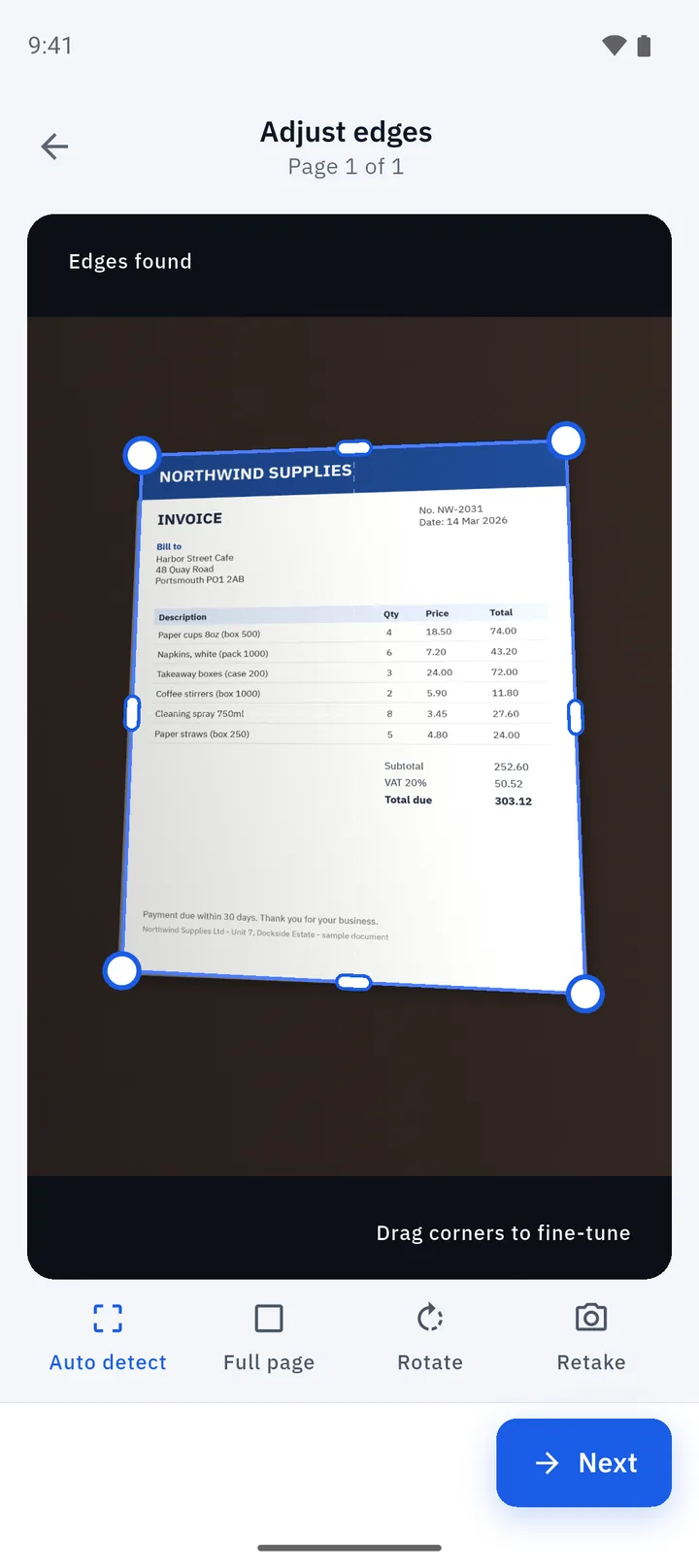
Take five seconds here:
- Look at the four corners. If a handle sits on the desk or cuts into the paper, drag it onto the real corner.
- Use Full page if the whole photo is the page already, as with a flat receipt that fills the frame.
- Rotate if the page is sideways.
- Retake if the photo is blurry or a finger is in the shot. Retaking takes less time than any fix afterwards.
Then tap Next. The page is straightened so that a photo taken at a slight angle comes out as a rectangle.
Step 3: Clean it up with a filter
Phone photos have uneven light, a yellow tint and grey paper. The enhance screen fixes that with one tap, using a strip of filters under the page.
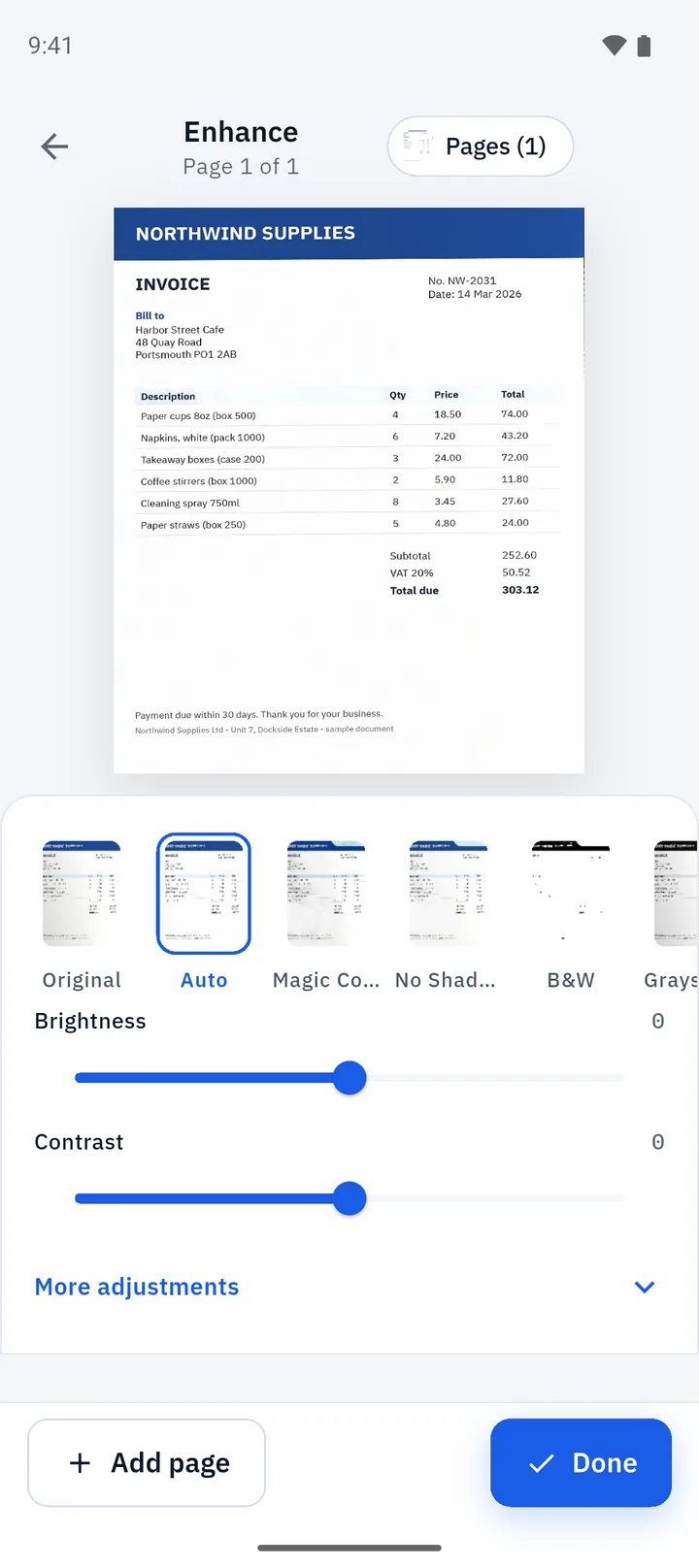
- Auto is the right first choice for most pages.
- Magic Color keeps colour but makes it vivid, good for a page with a logo or a stamp.
- No Shadow lifts a shadow that fell across the page.
- Black & White gives the crisp, high-contrast look of a photocopy, which is good for text and small file sizes.
- Grayscale keeps tones without colour.
If the result is slightly dark or washed out, open More adjustments and nudge brightness or contrast. Folio never overwrites your original photo; the filter is stored as an edit you can change.
Step 4: Add more pages, then create the PDF
For a one-page document, tap Done. For several pages, tap Add page and repeat steps 1 to 3 for each one. The pages collect into a single document.
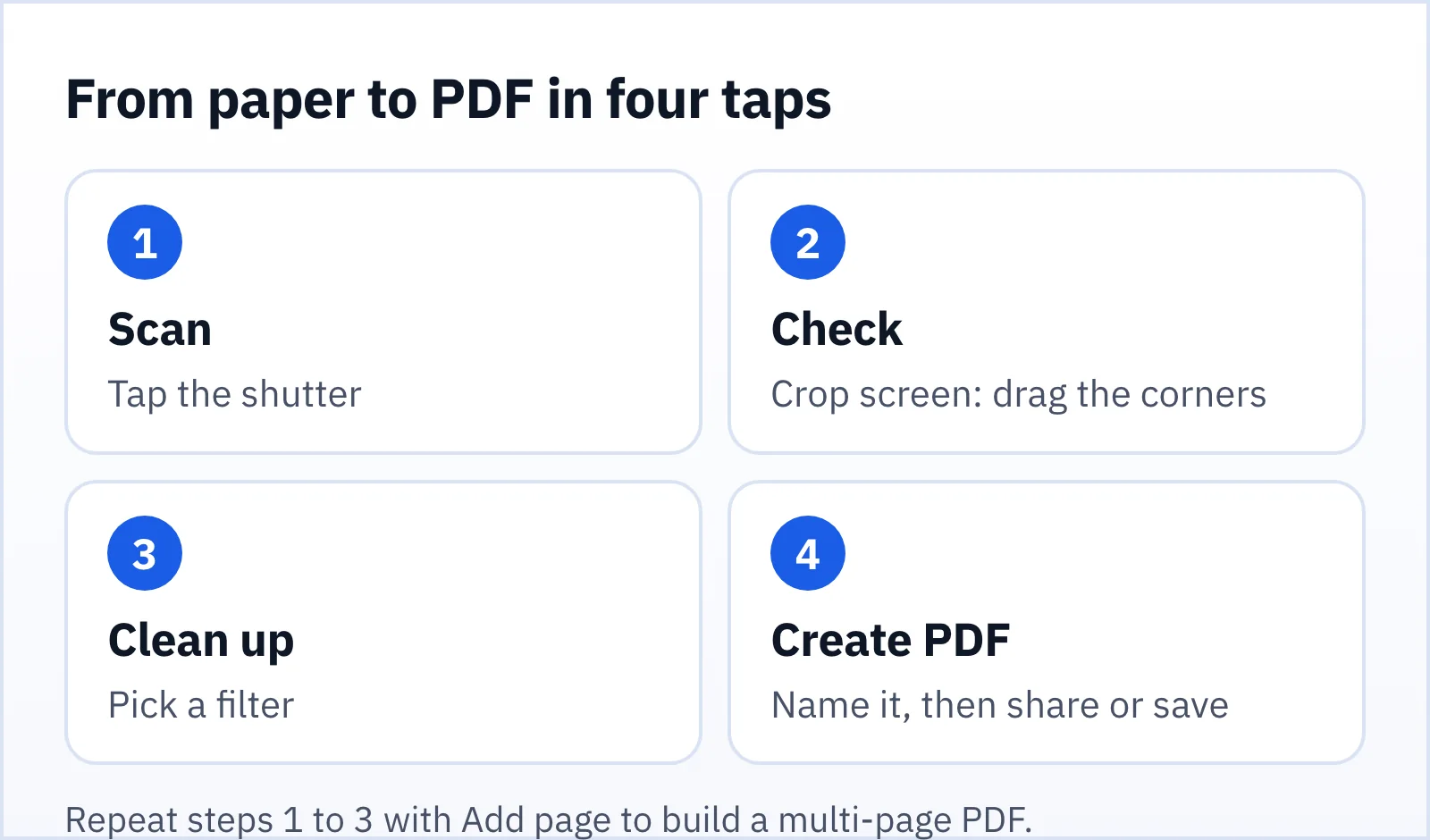
When you are done, give the file a clear name, such as "Lease agreement 2026", and tap Create PDF. Folio builds the PDF on your phone and saves it in your library. A "Your file is ready" screen offers Share, Open with, Open document and Save to device.
Special cases: ID cards and receipts
An ID card or a driving licence has two sides, and you usually want both on one sheet. Folio has an ID card mode that places the two sides on the same page. Receipts are another common job, and there is a receipt mode for them. For anything else, the normal flow works.
If you scan an ID for a bank, an employer or a landlord, think about where the file ends up before you send it. The privacy guide to offline and cloud scanners explains why it matters.
After the scan: what to do with the PDF
A scanned PDF is the start of a lot of paperwork, not the end.
- Sign it. Draw, type or photograph a signature and place it on the page. See how to sign a PDF on your phone.
- Combine or trim it. Merge a few scans into one file, or pull out the pages you need. See how to merge and split PDFs.
- Make it searchable. Run Extract text to copy the words or build a searchable PDF. See how to extract text from a scan.
- Protect it. A PDF you export can be protected with a password of your choice.
Does it work offline?
Yes. Cropping, filters and PDF creation all run on your phone, so you can scan on a plane or in a basement with no signal. Folio has no account and no document server, and it does not upload your documents.
Two honest footnotes. Folio is free and supported by ads, so ads and the optional Remove Ads purchase need a connection; a short rewarded video can play before you share, print or open a document in another app. And the optional text recognition model may be downloaded once by Google Play services the first time you use it.
Common problems and quick fixes
The edges are wrong. Drag the corner handles by hand. If the page and the background are the same colour, put a darker sheet underneath and retake.
Text looks soft. Move closer, hold the phone steadier, and make sure the lens is clean. Use more light rather than the flash.
There is a shadow across the page. Move so your body is not between the light and the page, or use the No Shadow filter.
The PDF is large. Black & White usually makes the smallest files. You can also compress the PDF afterwards from the Tools tab.
FAQ
How do I scan multiple pages into one PDF?
Scan the first page, check the crop, then tap Add page and repeat. All pages go into a single PDF when you tap Create PDF.
Does scanning add a watermark?
No. PDFs created in Folio have no Folio watermark.
Is a phone scan as good as a flatbed scan?
For text documents, receipts and forms, a well-lit phone scan with a clean crop is easily readable. A flatbed is still better for photographs and fine print under a magnifier.
Can I scan without an internet connection?
Yes. Scanning, cropping, filters and PDF creation do not need a connection.