Folio
FolioHow to Extract Text from a Scanned Document on Android

On this page
A scanned page is a picture. It looks like text, but you cannot select a sentence, search for a name or paste a paragraph into an email. OCR, short for optical character recognition, closes that gap by reading the letters in the image and turning them into real text. This guide explains how to do it on an Android phone, how to get a result you can trust, and how to end up with a searchable PDF, using the Extract text tool in Folio.
What OCR can and cannot do
OCR is good at clean, printed text: letters, invoices, statements, forms, book pages, labels. It is much weaker at:
- Handwriting. Neat block capitals may survive; cursive usually does not.
- Low-quality photos. Blur, glare and deep shadows hide letters.
- Tiny print. Terms and conditions in 6-point type often come out garbled.
- Complex layouts. Multi-column pages, tables and text over pictures can lose their order.
Folio's text recognition covers Latin-script languages, such as English, French, Spanish and German. Other scripts, such as Arabic, Devanagari or Chinese, are not supported yet. If a page mixes scripts, expect the unsupported parts to be missed.
Step by step: extract text in Folio
- Scan or import the page. Use scan to PDF, or import a PDF or photo. Check the crop screen carefully; a straight, tight crop helps the reader.
- Open the document and tap Extract text. You can also find it in the Tools tab, under Convert.
- Continue past the setup message the first time. Folio explains that text recognition runs on your device. Google Play services may check for a small recognition model and download it if needed. Only the model is downloaded; your documents and their text never leave the device. This is the one step that may need an internet connection.
- Wait for the reading to finish. Recognition runs on the phone, so a long document takes longer on an older device.
- Use the result. The words appear on screen. Tap Copy, or Share as text.
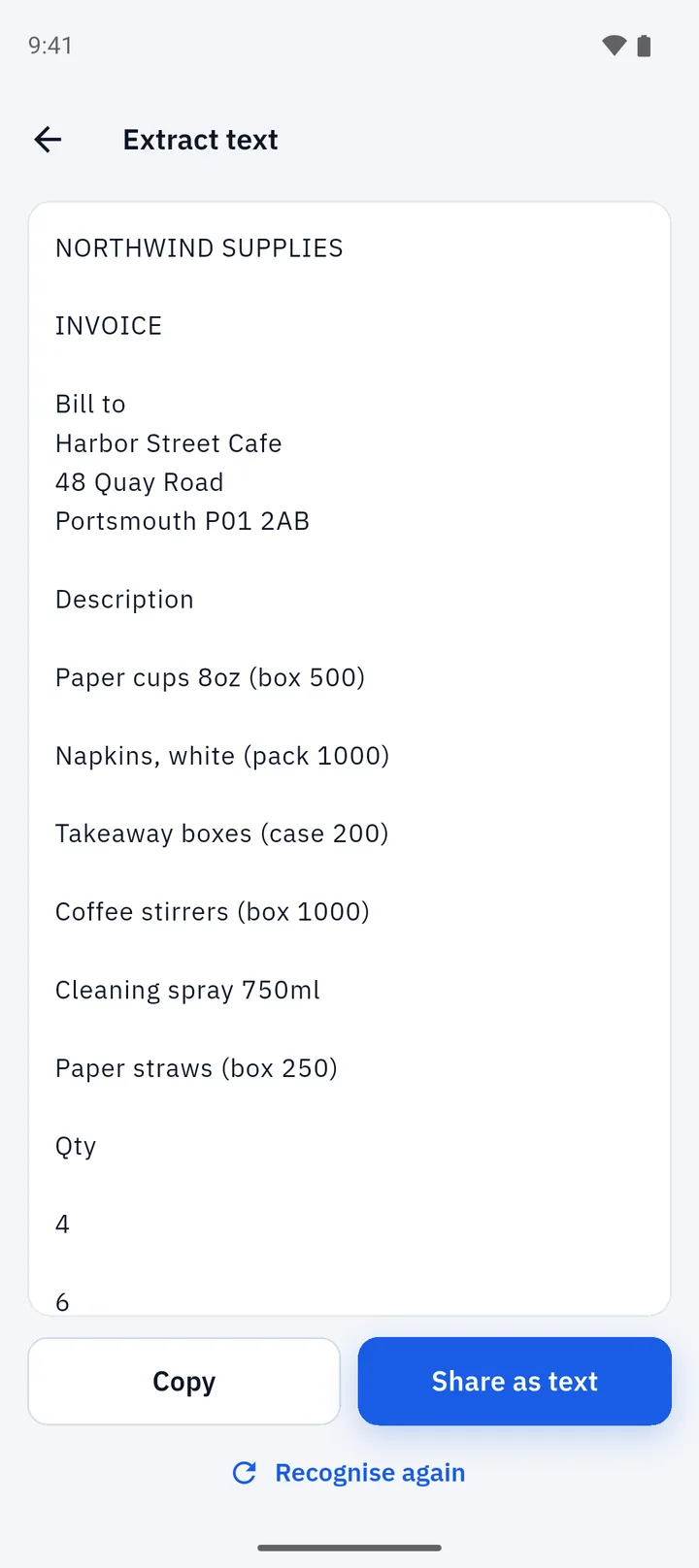
If you rescan a page, you can run recognition again with Recognise again.
What you can do with the text
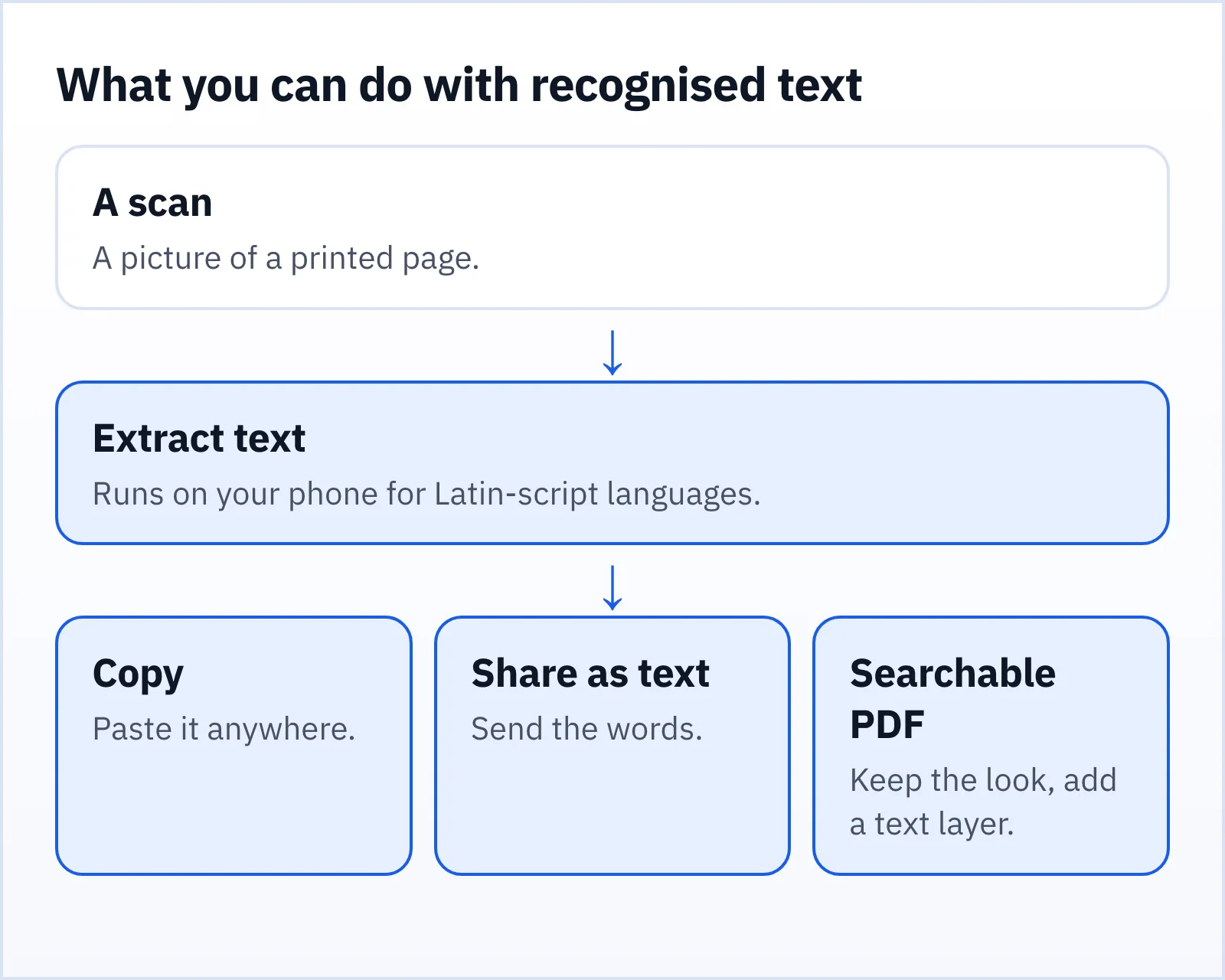
- Copy a number, an address or a paragraph into an email, a form or a note.
- Share as text, or export a plain .txt file, when you want the words rather than the page.
- Make a searchable PDF. The PDF looks exactly like your scan, but carries a hidden layer of text. You can select words, and search tools can find them.
- Search your library. Folio's search can match a document's title or the recognised text of documents you have already read with Extract text. It only searches text for documents you have run through the tool, so run it on the ones you want to find later.
A searchable PDF is the most useful result for archives: keep the faithful picture of the paper, and gain search on top. Exporting a searchable PDF, like sharing or printing, can show a short rewarded video first, because Folio is supported by ads.
How to get more accurate results
Almost every OCR problem is a scan problem. The five-point scan check applies directly. In short:
- Good light, no glare. Even light from the side or above; avoid the flash on glossy paper.
- Parallel and flat. Hold the phone square to the page and flatten curls.
- Tight, straight crop. Drag the corners to the true edges on the crop screen.
- A clean filter. Black & White or No Shadow often helps text readers; Magic Color is better for looks than for reading.
- Enough resolution. Move closer rather than zooming digitally. The text should fill most of the frame.
Always proofread. For anything that matters, such as a number you will pay or a name on a contract, compare the recognised text with the original. A "1" can become an "l", and a "0" an "O".
Privacy: where does the reading happen?
Many text-extraction services are websites or apps that upload your image to a server. For a menu, no problem. For a bank statement, a medical letter or an ID, the upload is the risk, as we explain in the privacy guide to offline and cloud scanners.
In Folio, recognition runs on your phone using Google's ML Kit text recognition. Your scan and the text found in it are not uploaded by Folio. The model itself may be downloaded once by Google Play services. After that, recognition can run without an internet connection. Folio's network configuration also blocks the connections the ML Kit library could use for its usage and diagnostics logging.
Troubleshooting
Nothing or very little is recognised. Check the language: only Latin-script text is supported. Rescan with better light and a tighter crop.
Words are scrambled across columns. Scan one column at a time, or crop to the part you need.
It asks to set up text recognition. That is the first-use setup. Continue and let Google Play services check for the model. If it cannot download, check your connection and try again. On some devices text recognition may not be available.
A table turns into a list. OCR extracts text, not layout. Copy the text and rebuild the table in your editor, or keep the searchable PDF to preserve the look.
What to do after you extract text
If you only wanted the words, you are done. If the page is a form, you may want to sign it or mark it up in the PDF editor. If it is part of a larger bundle, merge and split the PDFs.
FAQ
Is OCR on my phone really offline?
Yes, once the recognition model is on the device. The first use may need a connection so Google Play services can download that model. Your documents are not uploaded.
Which languages does Folio read?
Latin-script languages. Other scripts are not supported yet.
Can it read handwriting?
It is built for printed text. Neat printed handwriting may work in places; cursive usually will not.
What is a searchable PDF?
A PDF that looks like your scan and also contains a hidden text layer, so you can select and search the words.