Folio
FolioHow to Sign a PDF on Your Phone Without Uploading It

On this page
Someone sends you a PDF and says "sign and send back". The old way meant printing it, signing in pen, scanning it and emailing the scan. The modern shortcut is a web page that asks you to upload the document, which is awkward when the file is a lease, a loan form or an employment contract. This guide shows how to sign on your phone instead, keeping the file on your device the whole time, and where the limits are.
What "signing a PDF" actually means
There are two quite different things people call a digital signature.
- A picture of your signature placed on the page. It looks like your handwriting, and you can put it wherever a signature goes. This is what most everyday forms, permission slips, rental paperwork and internal approvals need.
- A certified, cryptographic signature. It is issued by a certificate authority, ties the document to a verified identity and can show whether the file was changed afterwards. Some contracts, tenders and government filings require it.
Folio does the first. It places a picture of a signature you draw, type or photograph. It is not a certified e-signature, and it carries no cryptographic proof. That is a limit, not a flaw: for most day-to-day paperwork a signature picture is what the other party asks for. If you are unsure, ask them which they need before you sign.
Three ways to make a signature
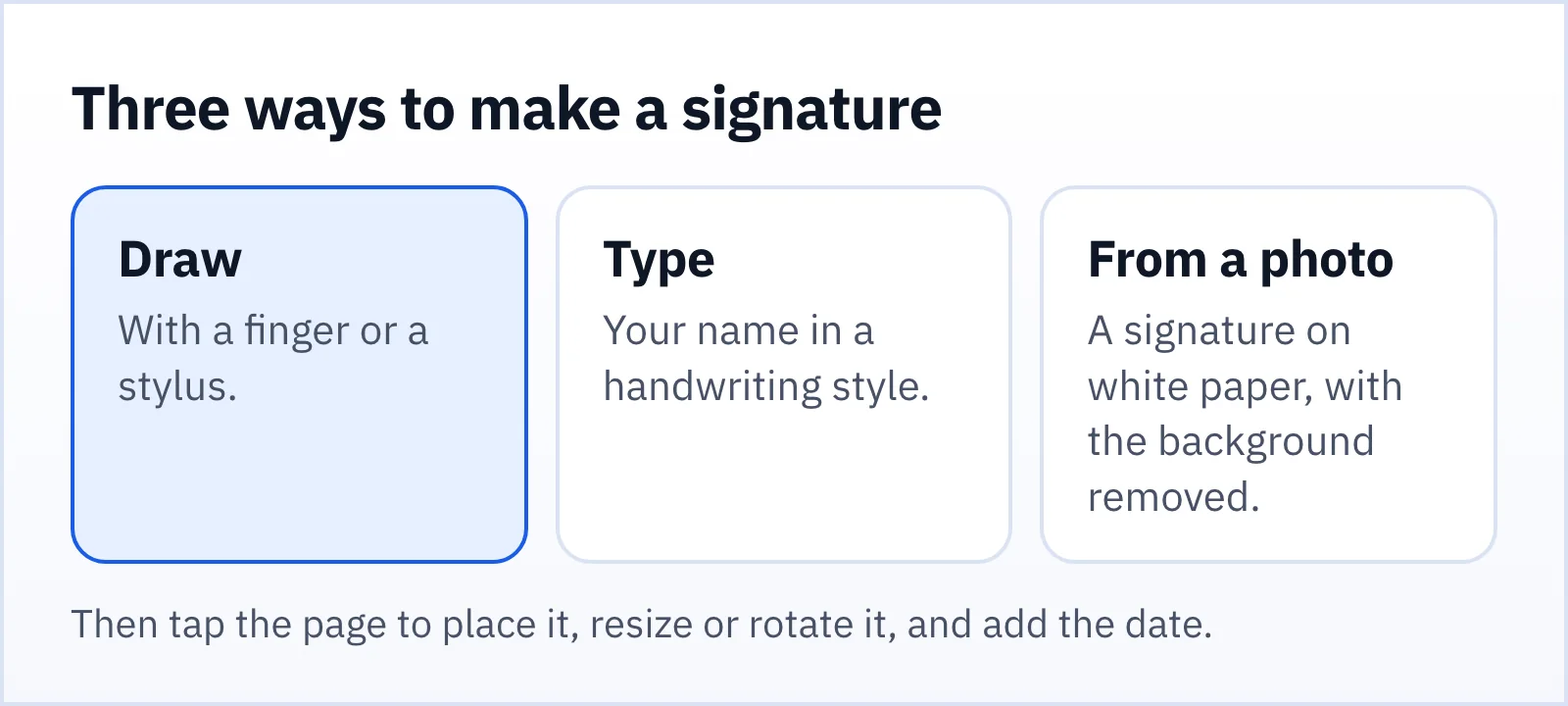
Draw. Sign with your finger or a stylus. It is the most personal option, and it works best if you slow down; a phone screen is small and a fast scribble comes out jagged.
Type. Enter your name and pick a handwriting style. You can make a full signature or initials, and choose the ink colour. It is neat and consistent, a good fit for forms where a clean mark is fine.
From a photo. Sign your name on plain white paper with a dark pen, photograph it, and Folio cuts the signature out so only the ink remains. This gives you your real handwriting, with the quality of a pen on paper.
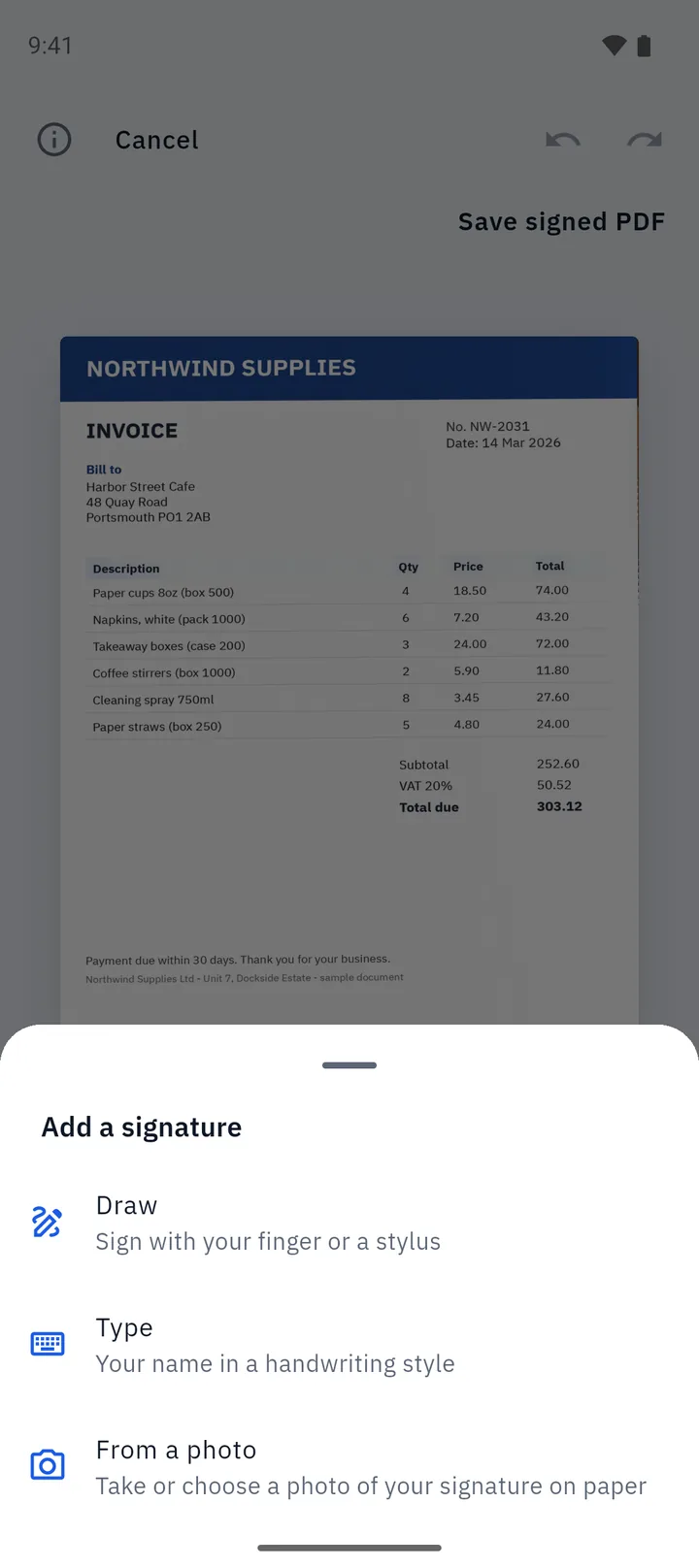
Step by step: sign a PDF in Folio
- Open the document. Pick a document you scanned in Folio, or import the PDF you received. If it arrived as an email attachment or in a chat, use Android's Open with or Share menu and choose Folio.
- Tap Sign. Choose Draw, Type or From a photo and make your signature. Choose Use once if you do not want to keep it, or Save and use to store it for next time.
- Tap the page to place it. Tap where the signature should go, then drag, resize and rotate it to fit the line.
- Add the date. Tap Add date to stamp today's date next to it. You can move and resize the date as well.
- Save the signed PDF. Tap Save signed PDF. Your original stays as it was and the signed version is a new copy.
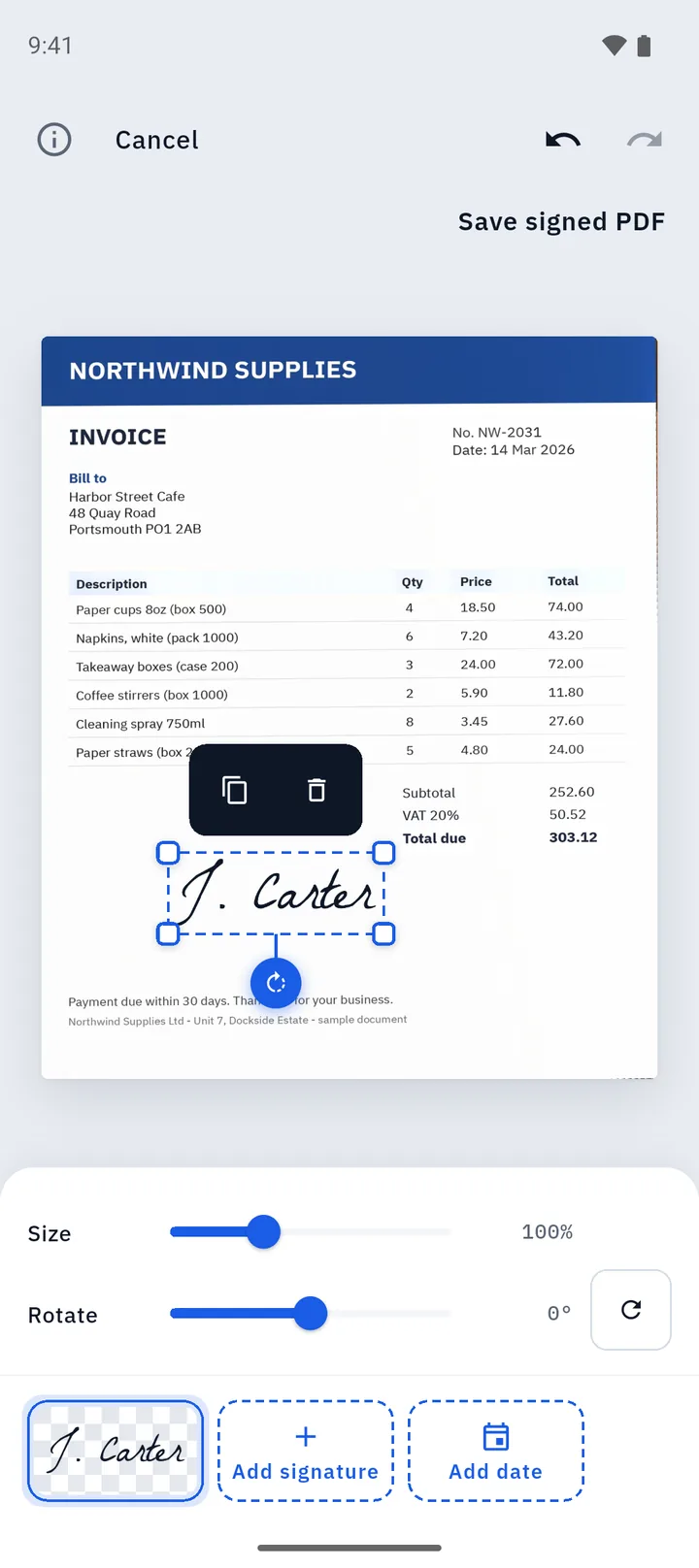
You can sign documents you scanned in Folio and PDFs you imported. If a PDF is protected with a password, Folio can open it in the viewer once you enter the password, but protected PDFs cannot be signed yet.
Why signing offline matters
When you upload a document to a signing website, a copy of it exists on someone else's server, at least for a while. For a gym waiver that hardly matters. For a mortgage form, a passport copy or a medical consent form, it might. Things to think about when a service wants your file:
- Who can read the uploaded file, and how long is it kept?
- Is your signature image stored and reusable by the service?
- What happens if the service is breached or changes its terms?
Signing on your device removes those questions. Folio processes the document and the signature on your phone, works in airplane mode, has no account and does not upload your documents. For a broader look at the trade-offs, read our privacy guide to offline and cloud scanners.
Tips for a signature that looks right
- Use a dark pen and plain white paper for the photo method, and photograph in even light so there are no shadows across the ink.
- Keep it a sensible size. A signature that fills the whole line looks forced; one that is tiny can be hard to read.
- Match the document's tone. A typed signature suits a form; a drawn or photographed one suits a letter or a contract.
- Check the page before you save. Look for the signature touching the line rather than floating above it.
- Keep a copy of the unsigned original. Folio does this by default, since signing always creates a new copy.
Things a signature picture cannot do
Be honest with yourself about what you are producing.
- It cannot prove who placed it. Anyone with your phone and your saved signature could place it, so use a screen lock and delete saved signatures you no longer need.
- It does not lock the document. Someone with a PDF editor could change a PDF after you sign it. Where tamper evidence matters, use a certified service.
- It does not replace legal advice. Whether a signature picture is accepted depends on the people involved and the rules where you live.
If you need to mark up the page as well, for example to fill in a name and address, the PDF editor lets you add text, pen strokes and highlights in the same app. The editor adds to the page; it does not rewrite text that is already in the PDF.
Removing a saved signature
A saved signature lives in your signature library inside Folio. You can remove it there at any time. Removing it does not remove a signature that is already placed on a signed document, because that is part of the document. To remove it from a document, delete the document or create a new copy from the unsigned original.
FAQ
Is a signature made in Folio legally valid?
Folio places a picture of your signature. It is not a certified e-signature. Many ordinary forms accept a signature picture, but some contracts need a certified service. Ask whoever needs the document which they accept.
Can I sign a PDF someone emailed me?
Yes. Open the attachment with Folio, or import the PDF, tap Sign, place your signature and save a copy to send back.
Does Folio upload my signature?
No. Drawing, typing, photo cut-out and placement all happen on your device.
Can I sign a password-protected PDF?
Not yet. Folio can open it in the viewer when you enter the password, but signing, merging and editing protected PDFs are not supported yet.