Folio
FolioHow to Merge and Split PDFs on Android, Step by Step

On this page
Paperwork rarely arrives as one tidy file. A job application wants a CV, a certificate and an ID copy as a single PDF. A landlord sends a ten-page agreement and you only need to forward pages three and four. A scan came out in the wrong order. These are all jobs for the same small set of PDF tools: merge, split, extract, reorder, rotate and compress. This guide shows how to do each on an Android phone, using Folio, with no computer and no upload.
Merge, split, extract: what each one does
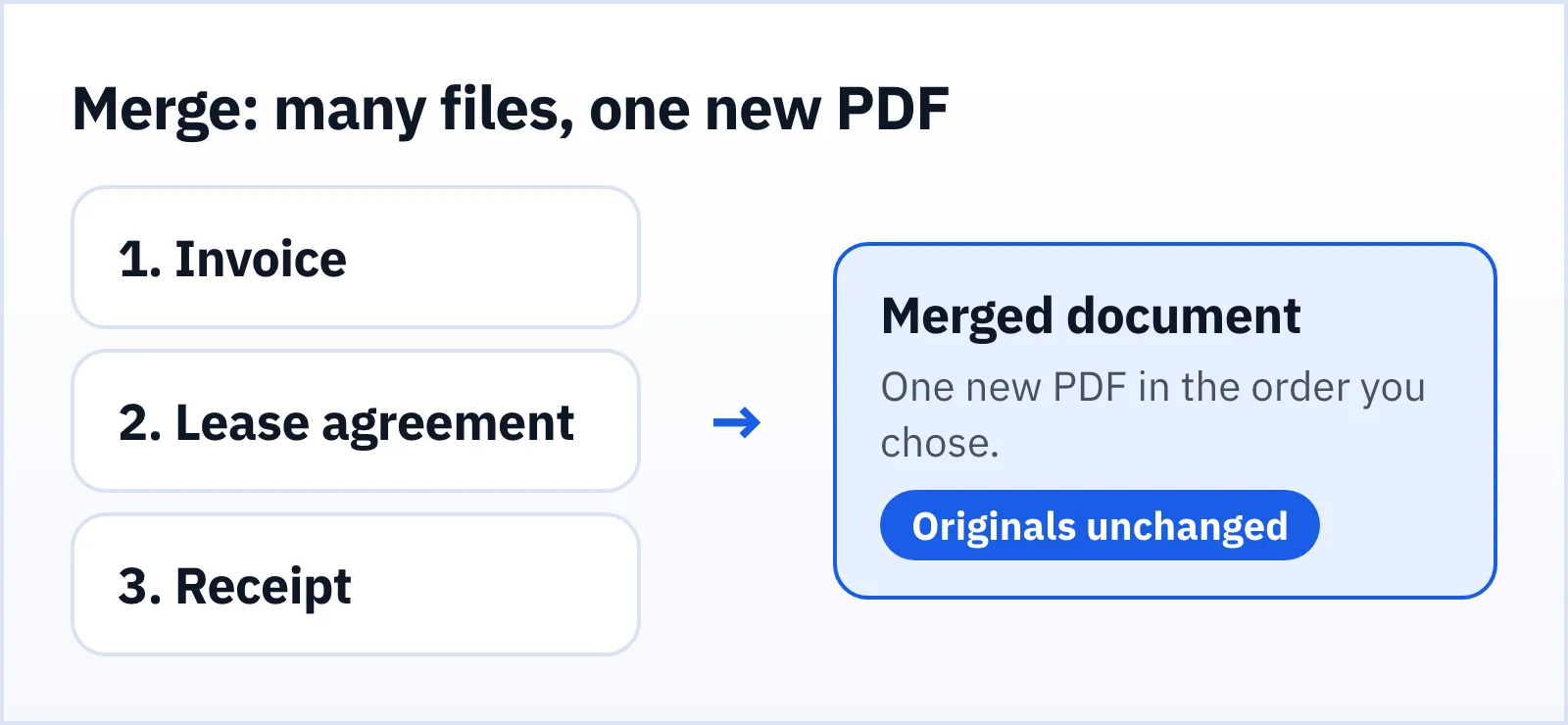
- Merge takes several PDFs and joins them into one new PDF, in the order you choose.
- Split divides one PDF into separate PDFs.
- Extract pulls selected pages out into a new PDF and leaves the rest behind.
- Reorder changes the page sequence inside one PDF.
- Compress makes a smaller copy of the file.
The rule that makes all of them safe: the tool should save a new file and leave your original alone. In Folio, originals are never modified. If you get something wrong, you still have the file you started with.
How to merge PDFs on Android
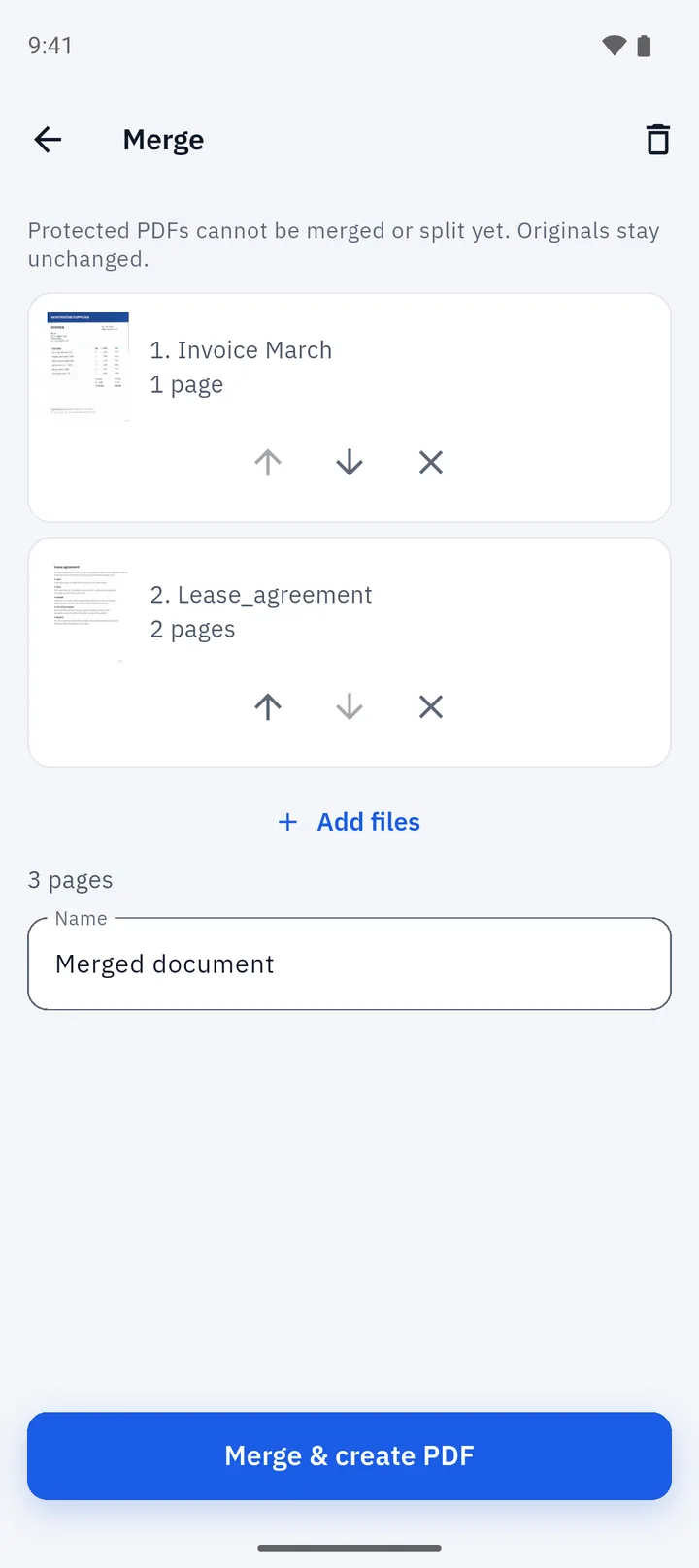
- Open Tools and tap Merge. The Tools tab groups the PDF jobs into Create, Organise, Convert and Edit and secure.
- Add your files. Choose documents from your Folio library, or tap Add files to bring in PDFs from your phone's storage. Scans you made in Folio can be merged too.
- Set the order. Each file is listed with its page count and arrow buttons to move it up or down, plus a button to remove it. The first file in the list becomes the first pages of the result.
- Name it. Give the merged document a clear name, such as "Application pack".
- Tap Merge & create PDF. Folio builds the new document on your phone.
Folio imports PDF pages as pages rather than flattening them into pictures, so selectable text and sharp vector graphics are kept in the merged file.
A merge checklist
- Put the most important document first, since the reader sees it first.
- Check page orientation. If one file is sideways, rotate it before or after merging.
- Merge scans after you have cropped and cleaned each page; see how to scan documents to PDF.
- Look through the result before you send it. It takes ten seconds and catches order mistakes.
How to split a PDF or extract pages
Maybe you were sent a hundred pages and you need five. Use Extract to keep only those pages as a new PDF, or Split to divide a document into separate PDFs.
- Open Tools and choose Split, or open the document and use its page tools.
- Choose the document and the pages you want.
- Create the new PDF and check it.
Typical uses: send only the signature page of a contract, separate a combined scan of three receipts into three files, or pull a single certificate out of a bundle.
Reorder, rotate, delete and add pages
Often the problem is not the files but the pages inside one. Folio's page tools let you:
- Reorder pages by moving them earlier or later.
- Rotate a page that was scanned sideways.
- Delete a page you do not want, such as a blank back side.
- Add pages, including a blank page or pages from another PDF.
Edits are saved as a new copy. If you reorder a scan and then change your mind, your original is still there.
Make the PDF small enough to send
Email attachments and upload forms often have size limits. Photos of paper can produce big PDFs, so shrink the file before you send it.
- Use Compress in the Tools tab to create a smaller copy. How much smaller it gets depends on what is inside the file.
- Scan in black and white for text pages. High-contrast pages compress better than full-colour photographs of paper.
- Split into parts if a site limits file size per upload and the PDF is long.
Keep the original at full quality and send the compressed copy.
Other ways to export
Sometimes a PDF is not what the recipient wants. The Tools tab also has PDF to JPG, which exports pages as pictures, and Long image, which stitches the pages into one tall image, handy for sharing in a chat.
Merging and privacy
Most web-based merge tools work by uploading your files to a server, merging them there and sending the result back. That is fine for a flyer and less fine for an ID copy, a payslip or a signed agreement. Folio's merge, split, reorder and compress run on your phone, so the files do not leave it. For the bigger picture, see our privacy guide to offline and cloud scanners.
Limits to know about
- Password-protected PDFs can be opened in the viewer when you enter the password, but cannot yet be merged, split, edited or paged.
- Very large files take longer on older phones, because the work happens on the device.
- Ads and purchases. Folio is free and supported by ads. A short rewarded video can play before you share, print or open the result in another app, and a one-time Remove Ads purchase is available in Google Play.
What to do next
Once the PDF is the right shape you may want to sign it, mark it up with the PDF editor or extract its text. They all work on the same document in the same app.
FAQ
How do I combine PDF files on my phone?
Open Folio, go to Tools, choose Merge, add your files, set the order and tap Merge & create PDF. You get one new PDF.
Will merging change my original files?
No. Folio saves a new document and leaves the originals unchanged.
Can I merge a scan with an existing PDF?
Yes. Scans created in Folio and PDFs you import can be merged together.
How do I take a few pages out of a PDF?
Use Extract to keep only the pages you want as a new PDF, or Split to divide the document into separate PDFs.