Folio
FolioTips for a Perfect Document Scan: Light, Angle, Filters

On this page
Two people scan the same invoice with the same phone. One PDF looks like a clean copy; the other has a grey cast, a shadow in the corner and a skewed edge. The difference is not the camera. It is five small habits. This guide covers them, explains what each filter is for and gives a quick fix list. We use Folio for the examples, but the principles are universal.
The five-point scan check
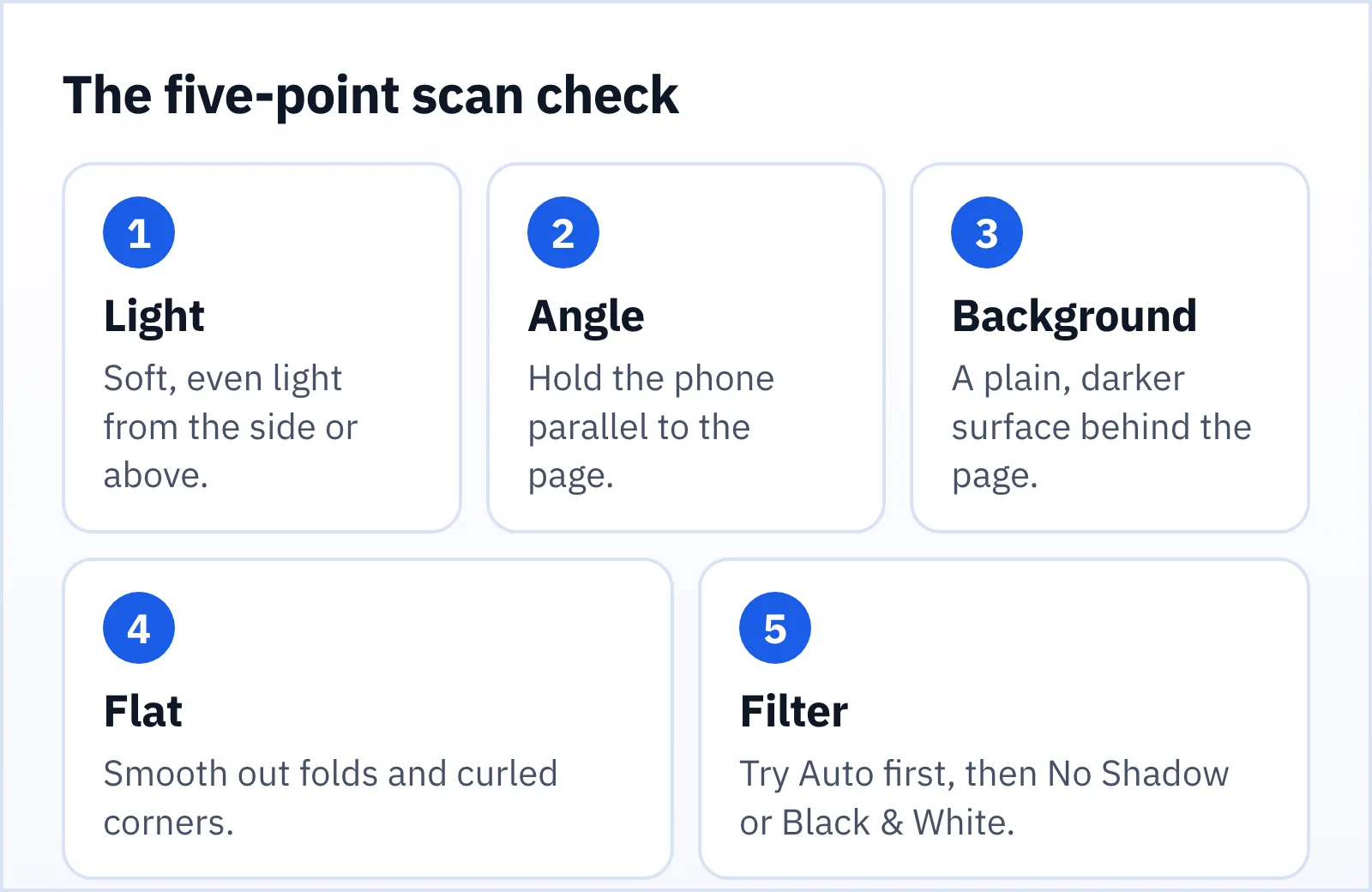
1. Light: soft, even and from the side or above
Light is the biggest factor. Look at where the light falls on the page.
- Use daylight from a window when you can. A desk near a window in the morning is hard to beat.
- Avoid your own shadow. If you lean over the page with a lamp behind you, your head and phone cast a shadow across it. Move the lamp to one side.
- Skip the flash on glossy paper. The flash makes a bright patch that hides text. On matte paper it flattens the page and adds a harsh edge.
- Avoid mixed lighting. A yellow lamp and a blue window together give an odd colour cast that filters then have to correct.
2. Angle: parallel to the page
Hold the phone directly above the page, with the back of the phone parallel to the paper. Check that the top and bottom edges look equally wide in the viewfinder. A tilted phone makes a trapezoid, and although the crop step straightens it, the far side ends up less sharp than the near side because it was farther away.
Stand rather than slouch, rest your elbows on the desk, and use both hands. A steady shot is a sharp shot, and a sharp shot is the base for everything else, including text recognition.
3. Background: plain and darker than the page
Edge detection looks for the boundary between paper and surface. A white page on a white desk gives it nothing to find. Put the page on a dark, plain surface: a dark desk, a folder or a piece of dark card. Avoid patterned tablecloths and keyboards, which confuse the edges.
4. Flat: smooth out folds and curls
A curled page bends the lines of text, which looks odd after straightening. Smooth the page with your hand, or weigh the corners with coins. For a bound book or a thick pad, press the page flat, and hold it with fingers outside the area you need. Fingers in the shot are the commonest reason for a retake.
5. Filter: choose for the job
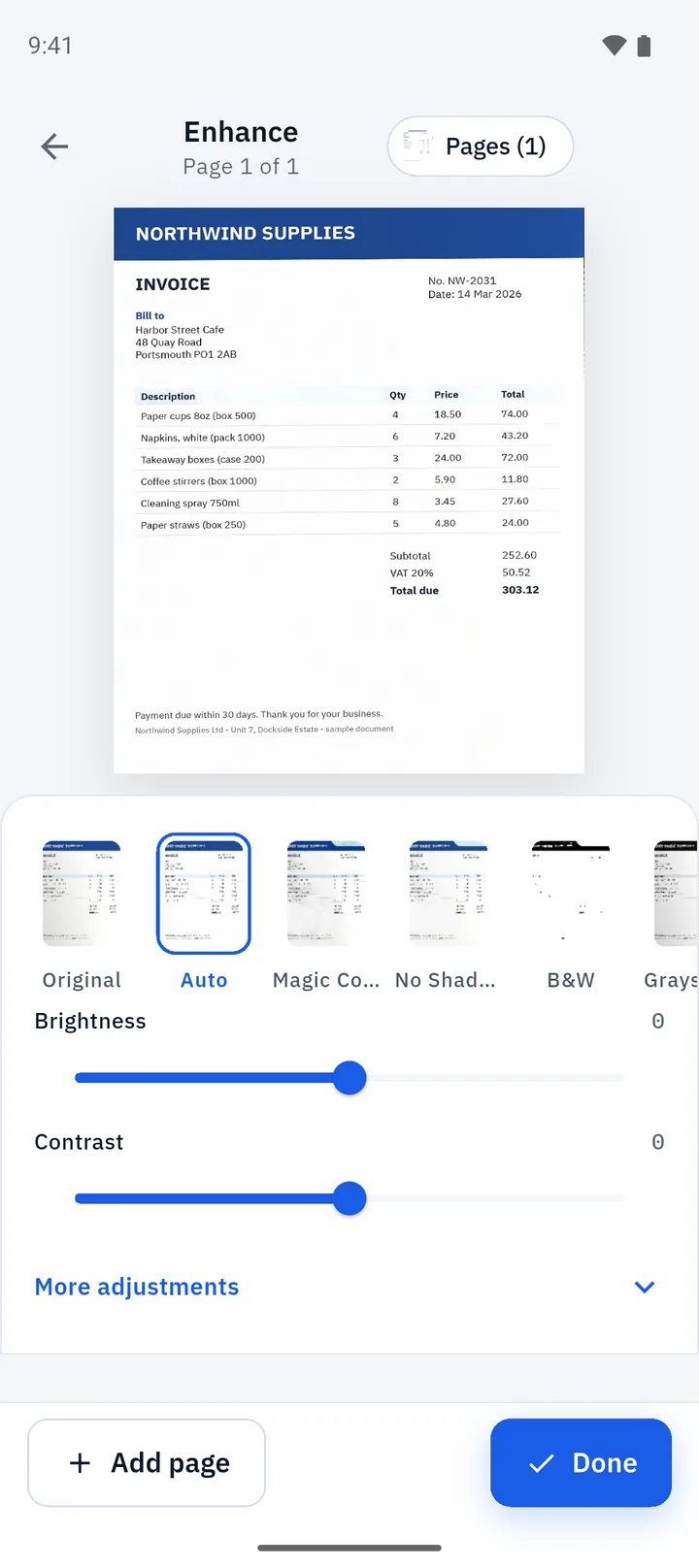
| Filter | Best for | Notes |
|---|---|---|
| Auto | Most pages | A good first choice; start here |
| Magic Color | Pages with logos, stamps or colour | Vivid; makes colours stand out |
| No Shadow | A page with a shadow or uneven light | Evens out the lighting |
| Black & White | Text, forms, letters | Crisp, high contrast, often smaller files |
| Grayscale | Photos and mixed content | Keeps tones without colour |
If the result looks a bit dark or pale, open More adjustments and change brightness or contrast. Folio keeps your original photo and stores the filter as an edit, so you can try several.
Use the crop screen properly
Every page goes through the crop screen in Folio. Treat it as the quality gate.
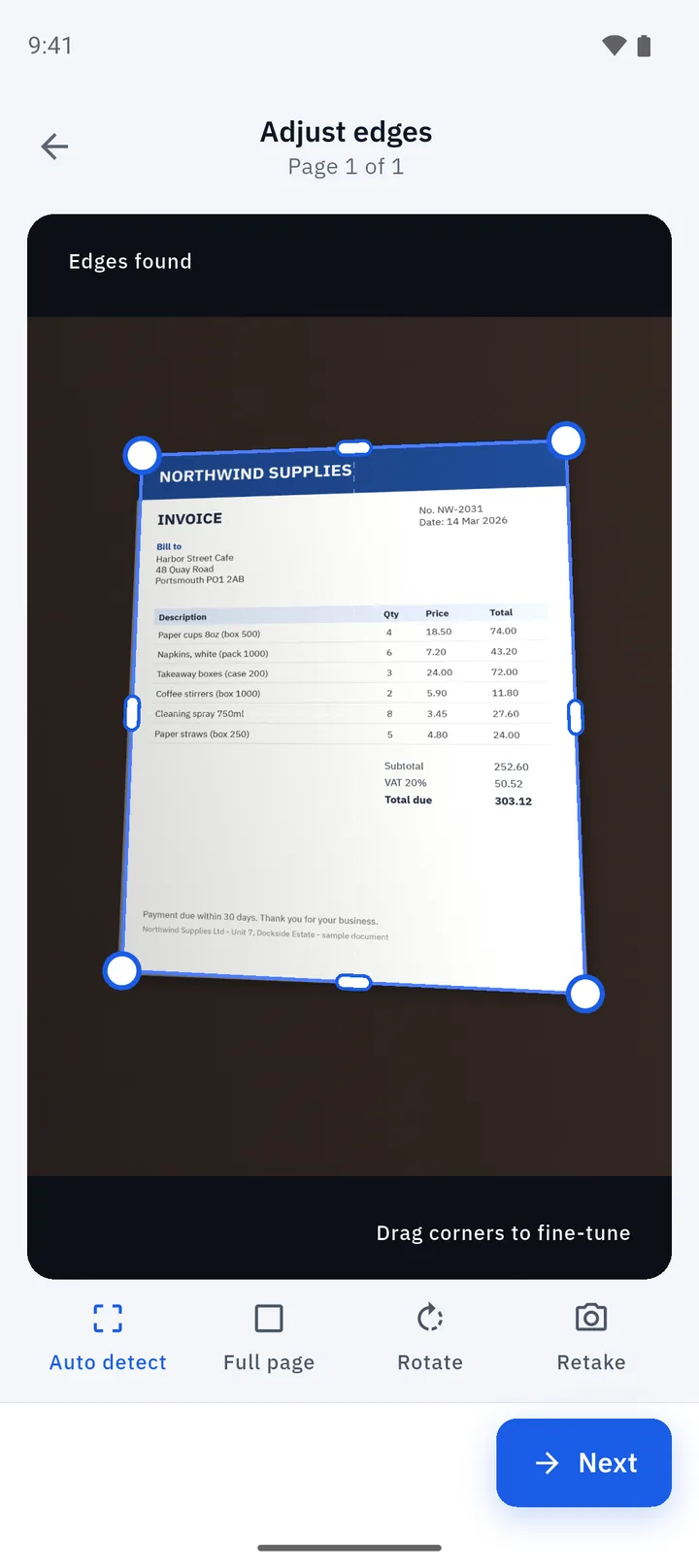
- Look at all four corners. Auto detect is usually right, but a shadow or a busy background can move a handle.
- Use Full page when the page already fills the photo.
- Rotate sideways pages here, not later.
- Retake a soft or blocked photo rather than hoping.
Folio is built around scanning one page at a time. You tap the shutter, and you check each page before it joins the document. It feels slower than snapping a stack, and it saves time on cleanup.
Quick fixes for common problems
| Problem | Likely cause | Fix |
|---|---|---|
| Grey or yellow page | Uneven or warm light | Move to daylight; try Auto or Magic Color |
| Shadow across the page | Your body or a lamp | Move the light; use No Shadow |
| Glare patch | Flash or overhead light on gloss | Turn off the flash; tilt the page slightly away from the light, then retake |
| Blurry text | Movement or too far away | Brace your elbows; move closer |
| Skewed edges | Phone not parallel | Retake square on, or drag the crop handles |
| Cut-off corner | Page not fully in frame | Leave a margin of desk on every side |
| Huge PDF | Colour photos of paper | Try Black & White, or compress it from the Tools tab |
Special documents
ID cards. Use the ID card mode, which puts both sides on one page. Place the card on a dark surface and avoid glare on the laminate; tilt it a few degrees away from the light, then take the picture square on.
Receipts. They curl and fade. Flatten them, and use Black & White or Auto to get the print dark enough. Use the receipt mode.
Books and bound pages. Press the spine flat. Expect a little curve near the binding; scan one page at a time and crop tight.
Photos and drawings. Use Magic Color or Original rather than Black & White, which would crush the tones.
After the scan
When the PDF looks right, you can sign it, merge it with other files, or extract its text. If the document is sensitive, think about where you send it; our privacy guide has a checklist.
And if the scan really is bad, do not rescue it with filters. Retake it. It takes fifteen seconds.
FAQ
What is the best filter for text documents?
Start with Auto. If the text still looks faint or the paper looks grey, try Black & White, which gives a crisp, high-contrast result.
How do I stop shadows in my scans?
Move the light source so your body does not block it, use soft light from the side, and try the No Shadow filter.
Should I use the flash?
Usually not. The flash creates glare on glossy paper and flat, harsh light on matte paper. Use daylight or a lamp instead.
Do I need to scan at a special resolution?
No. Fill the frame with the page, hold the phone steady and keep the text sharp. That matters more than any setting.